
Widgets, Watch & Mac
The iOS project includes home screen widgets and an Apple Watch app. A separate native Mac app ships in the same repository. All of them talk to your server with the Bearer token the iPhone (or Mac) app provisions at sign-in. See iOS App for building and first-run setup.
Home screen widgets
Three widgets appear in the widget gallery under OpenTask:
| Widget | Shows |
|---|---|
| Reminders | The reminders in the current reminder period, and pages for task segments |
| Today's Tasks | Over-target tasks (while there are any), tasks targeted today, plus "Up next" and one page per project |
| Quotas | Your quotas, grouped by period |
Each widget comes in small, medium, and large sizes. On iPhone they are also available as Lock Screen widgets (rectangular and circular).
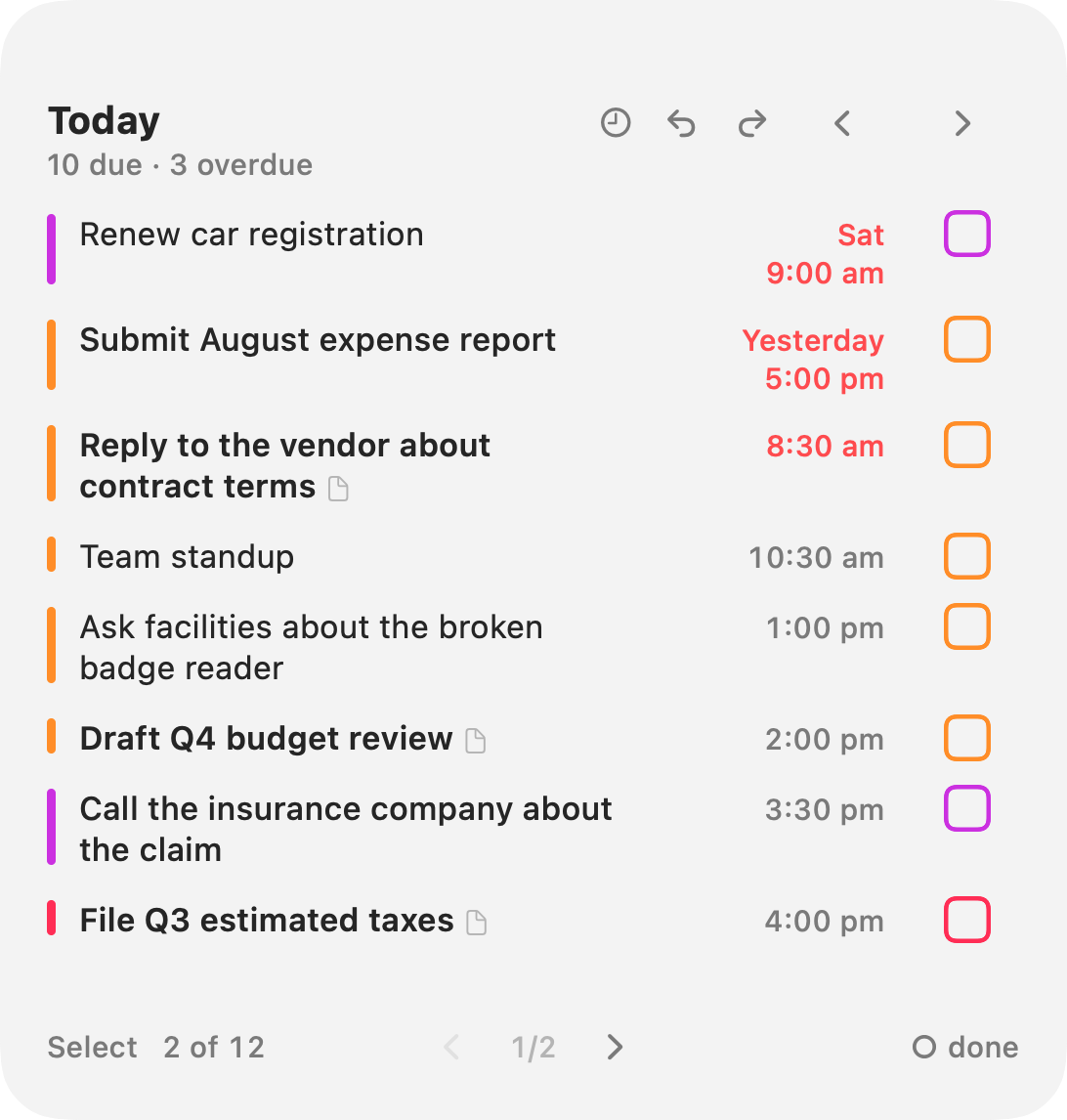
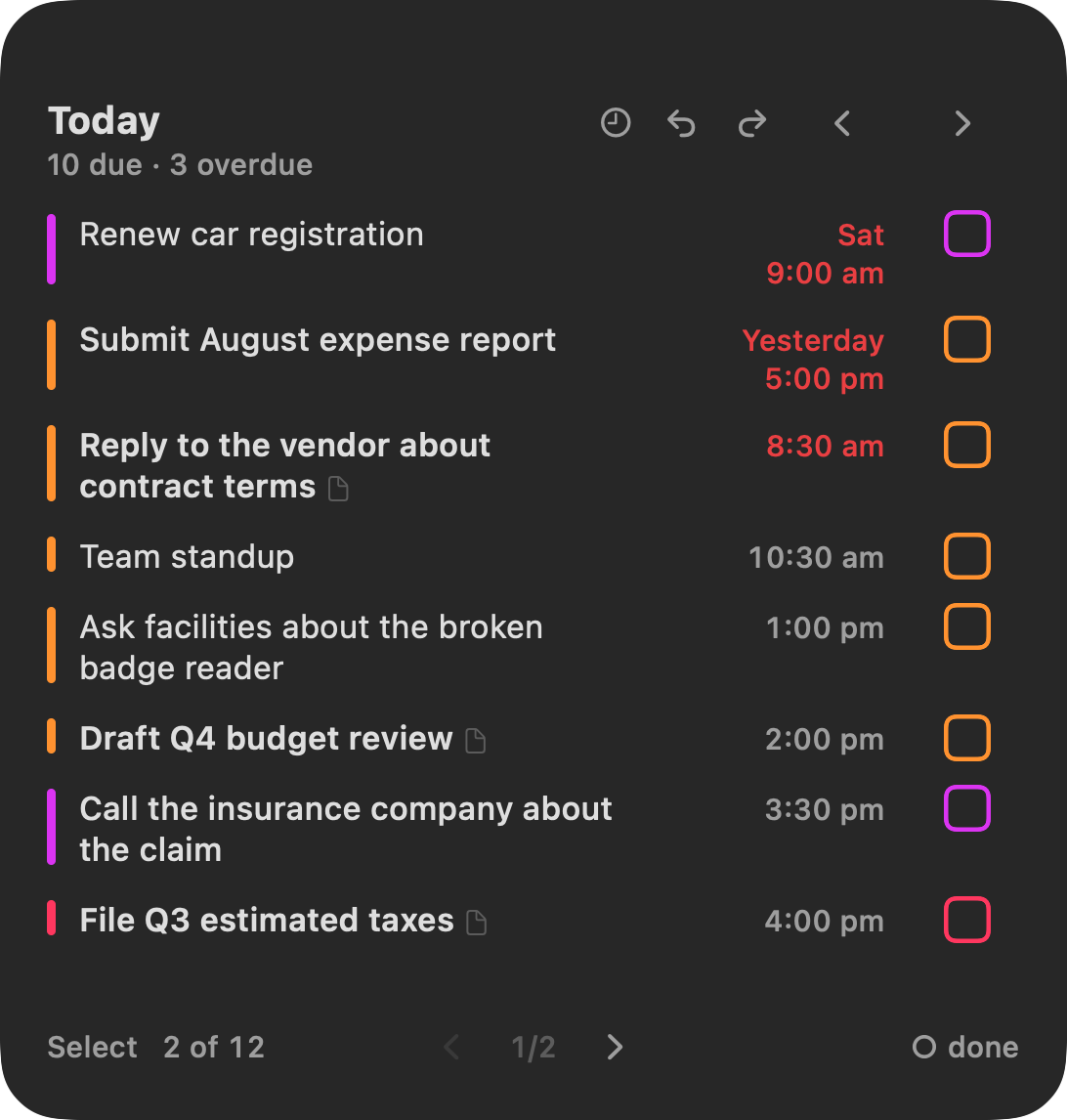
Small and Lock Screen widgets are for glancing: they show a count or a single item, and tapping one opens the app. Medium and large widgets have buttons. The large size has the full set of controls described below. In medium and large widgets, tapping an item's title opens that item in the app, and tapping the header opens the matching screen. On the Reminders and Today's Tasks widgets, a small note glyph after a row's title means the reminder, quota, or task has notes.
Reminders
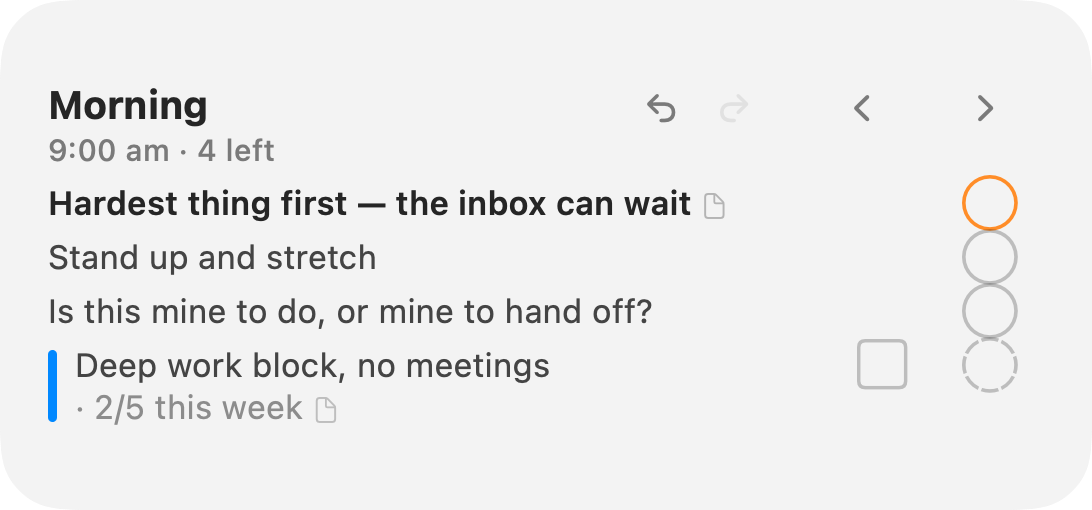
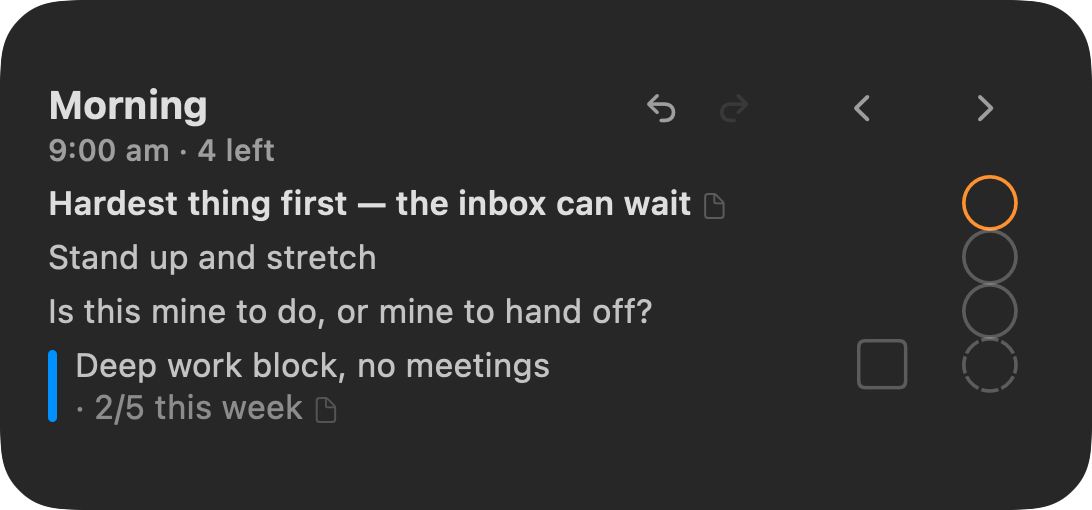
- Shows the reminders for the current reminder period. Tap the circle next to a reminder to check it off.
- The header names the period, with its start time and how many are left under it ("8:30 am · 12 left"), or just the time once nothing is left.
- The ‹ › chevrons in the header (medium and large) switch to the previous or next period. On the large widget, the
‹ 1/3 ›pager at the bottom still pages within the period you're on. - The large widget also shows a strip with one segment per period that has reminders. Each segment's width follows how many items the period has today, with a minimum so a small period stays tappable. Periods that haven't started yet are drawn fainter. A segment fills as you check items off and turns green once nothing in the period is waiting, even if you finish it before its start time. Tap a segment to jump to that period.
- When you finish the last reminder in a period, the widget moves to the earliest period that has already started and still has reminders waiting.
- The large widget shows the period's progress at the bottom left, like "4 of 7" (handled out of the period's total for the day, quota reminders included).
- A finished period shows a seal and Complete.
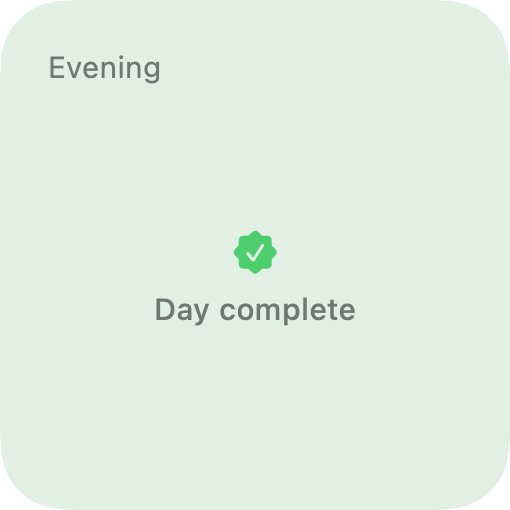
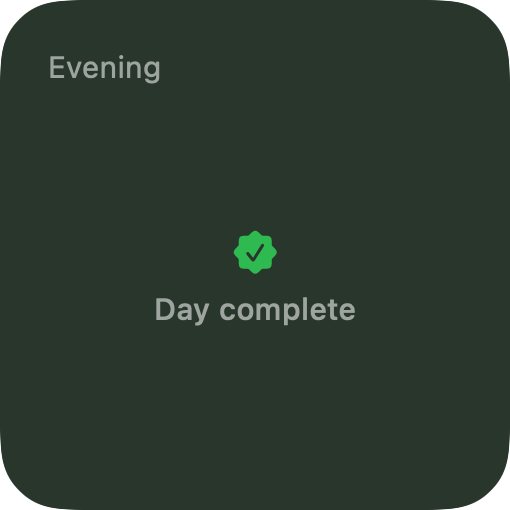
- Once every period of the day, including the ones that haven't started yet, has nothing waiting, and you handled at least one item today, the day is complete: every period gets a faint green wash and reads Congratulations and Day complete, including periods that had no reminders. The Apple Watch Reminders page and Smart Stack card use the same words.
- Quota reminders are listed after the period's reminders, with the quota's count and period ("Stretch · 1/3 this week", "Floss · 1/2 today") and a thin stripe in its label color. Each has two buttons: the dashed circle marks it considered (no progress), and the square next to it means you did it (logs progress and marks it considered). Tap the title to open the Reminders page with that row highlighted, the same as a reminder's title. Quota reminders count like reminders toward the period being finished.
- Task segments get pages of their own after the periods, headed like "Tasks · Days" with how many are left. Each row has a circle on the left to mark the task considered, a Target today button, and a checkbox on the right to complete it, with Defer all at the bottom. Tap a title to open the task in the app, where you can change its horizon or target. Segment rows never count toward a period's progress or the day being complete.
- With Show completed on, handled quota reminders appear in the done list with a filled dashed circle (whether considered or did it; the count shows what was logged). Tap the filled dashed circle to put one back: it waits again, and a "did it" has its progress taken off.
Today's Tasks
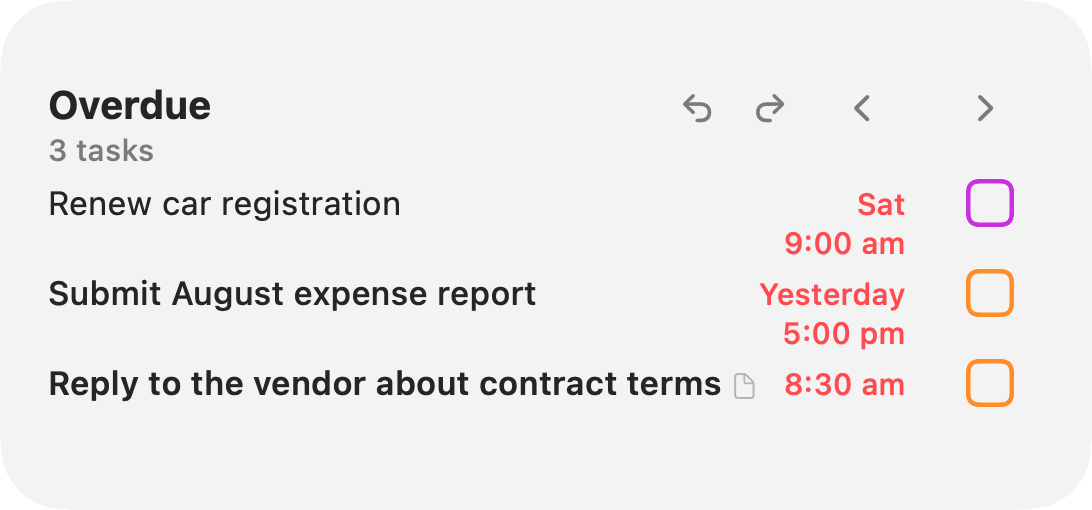
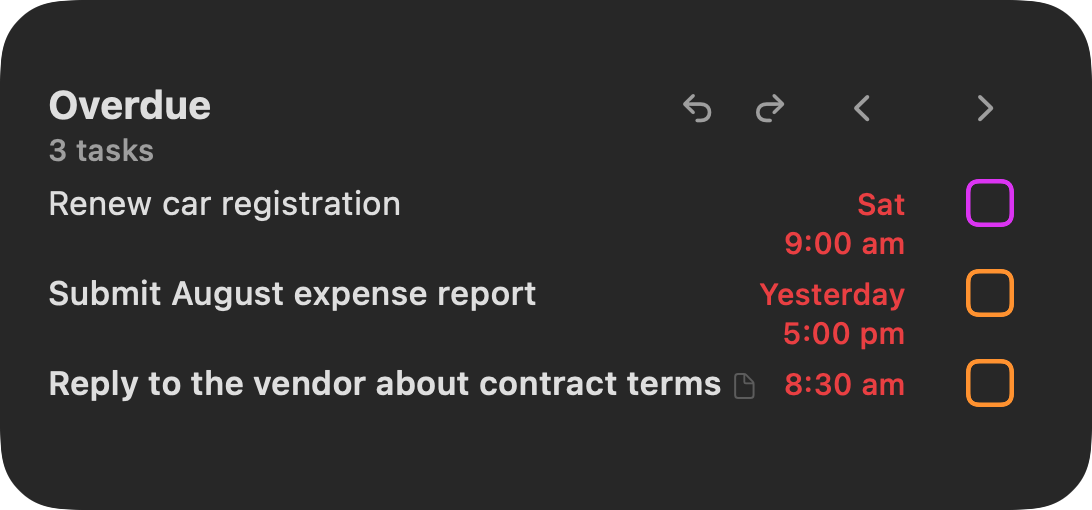
- Use the chevrons in the header to switch between Over target (only while something is over target, longest first), Today (targeted today or over target), Up next (every task with a target, soonest first), and one page per project with something due.
- Over target is the default page while any task is over target; otherwise the widget opens on Today. A page you pick with the chevrons sticks until that changes: when tasks become over target, or the last one is cleared, the widget goes back to its default. Completing the last over-target task switches it to Today right away.
- On the Over target page, the header reads "Over target" with the task count under it. Tapping the header opens the dashboard filtered to over-target tasks, on iPhone and Mac.
- A task's label names the day when it isn't today: "Tomorrow 9:00 AM", a weekday for 2-6 days out, a date for a week or more. Over-target tasks read the same way backwards in plum: the time alone for earlier today, otherwise "Yesterday", a weekday, or a date above the time. They also carry the target age ("3d"), and a red flag once a deadline has passed.
- A task with a deadline always has a target (its automatic target if you didn't pick one), so it's listed like any other task.
- Tap the square next to a task to complete it.
- Reminders, quotas, and undated tasks are not shown.
- On the Today page, the large widget shows the day's progress at the bottom left, like "2 of 6" (tasks done today out of those plus the ones still open on Today).
- When Today has no open tasks and you completed at least one today, the page reads Congratulations and Day complete over a green wash, with "N done today" in the header. If nothing was due and nothing was done, it reads Nothing due today and lists the next three tasks due after today.
Snooze mode. Tap the clock in the header (large widget). Each row then gets two buttons:
- ⏭ Next period: move the task to the start of the next reminder period.
- +1h: move the task one hour later.
Both count from the task's own target while it is still upcoming (a task targeted at 5:00 PM moves to 6:00 PM). An over-target task moves one hour from now, rounded to the hour. These per-row buttons work at any priority, including High and Urgent, because you picked the task yourself. A snooze that would pass a deadline that's still ahead stops at the deadline instead.
A bar at the bottom, All over target (N), snoozes all over-target tasks at once to the next period (labelled with its time, like ⏭ 4:30 pm) or by an hour. On the Over target page the bar shows even outside snooze mode, so clearing everything is one tap. It follows the same rules as the app's bulk snooze: High tasks (and tasks past their deadline) move only when nothing lower is over target, Urgent tasks never move, and a move stops at a deadline that's still ahead. See Snooze & Time.
Select mode. Tap Select at the bottom left (large widget), then tap rows to pick them. The bottom bar offers ⏭ Next period, +1h, ✓ (complete), and Cancel. Picks carry across pages within the same Today, Up next, or project page.
Quotas
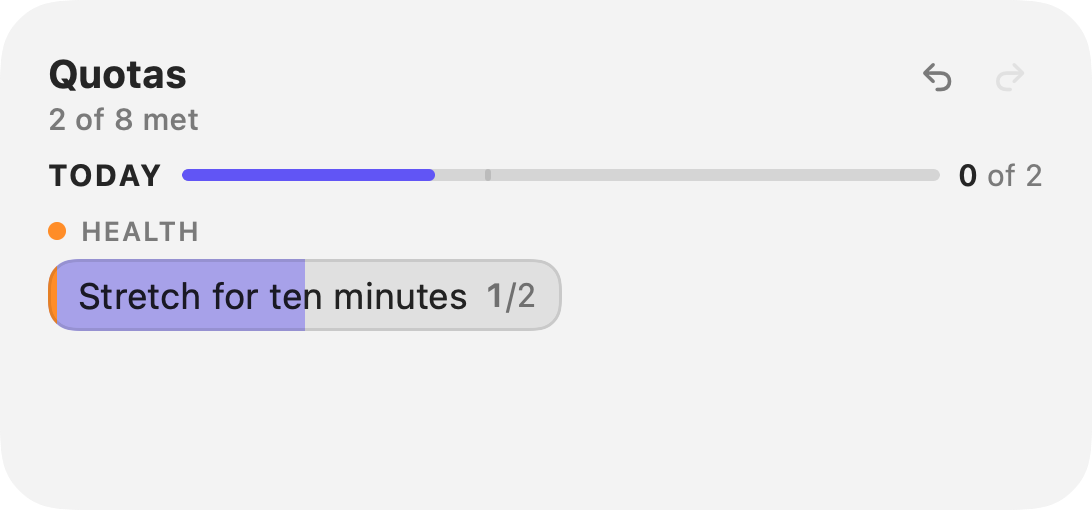
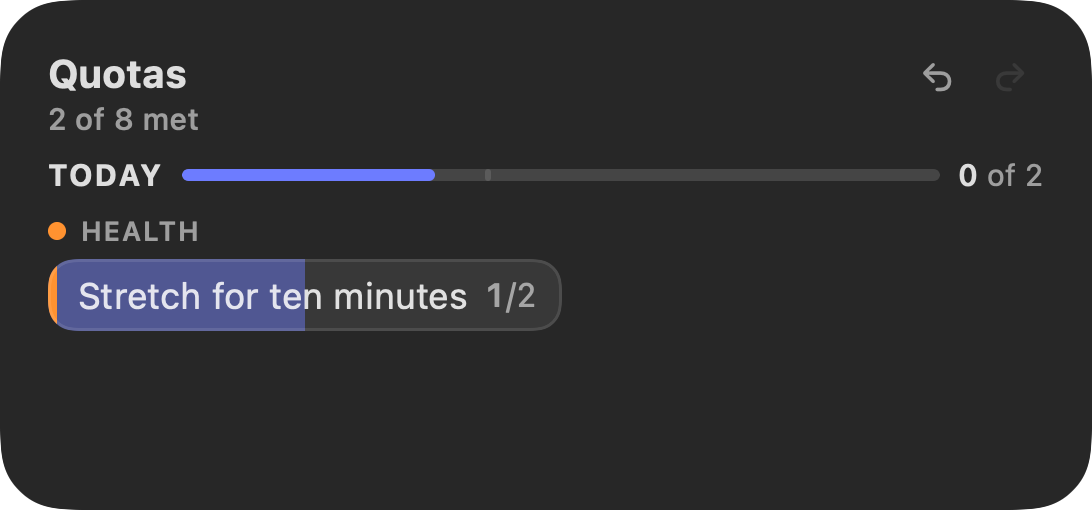
- Each quota is a chip showing its count, like
2/3. Tap a chip to log +1. You can go past the target (4/3). - Quotas are grouped by period, and each weekly, monthly, or yearly section shows how many days are left. The week follows your Week starts on setting (see Quotas).
- The small widget shows how many quotas are met, as a ring and a fraction.
- Takeback mode (large widget): tap the ⊖ button at the bottom right. Chips turn red and each tap logs −1. The mode stays on until you tap ⊖ again. It turns off by itself the next time the widget refreshes on its own.
Shared controls (large widget)
- Paging: when a list doesn't fit, a
‹ 1/3 ›pager at the bottom pages through it. Long titles wrap in full instead of being cut off. - Show completed: tap the dot at the bottom right (labelled done) to show today's completed items below the open ones. Tap a completed item to restore it. Quota reminders are put back with their filled dashed circle; quota completions can't be restored (use Undo). On the Quotas widget the dot is labelled met and shows quotas that already reached their target.
- Undo / Redo: two buttons in the header undo or redo your most recent change. This is the same undo history as the web app, so it undoes the last change you made anywhere, not only on the widget. The header briefly shows what was undone.
Widget sync
Widgets refresh:
- right away after you tap a button on the widget: the tap shows at once, and the change is sent to the server in the background, in order
- when you leave the OpenTask app
- on their own schedule, roughly every 30 minutes and at the start of each reminder period
On iOS 26, macOS 26, and watchOS 26, the server also sends a widget push when your data changes, including changes from the web app or another device. Changes the widgets don't show, such as editing only a task's notes, send no push. The push needs APNs configured on the server (see Notifications).
Apple limits how many of these pushes a device's widgets receive each day, so the server paces them. The first change after a quiet spell is pushed within a few seconds. After that, a device gets at most one push every 5 minutes by default, and changes in between arrive together at the end of that window. Pushes are held outside your waking hours (Wake time and Sleep time in Settings → Snooze), so overnight changes arrive in one push at your wake time. Opening the app or the widget's own schedule still refreshes it sooner. Mac widgets aren't limited this way and update within seconds. The server administrator can change both rules; see Configuration.
Apple Watch app
The Watch app gets its credentials from the iPhone app. If it shows Not Connected, open OpenTask on your iPhone. Swipe left and right between three pages. The Digital Crown scrolls within a page.
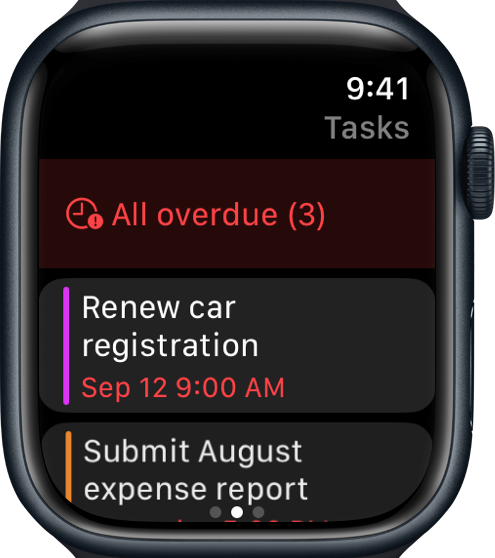
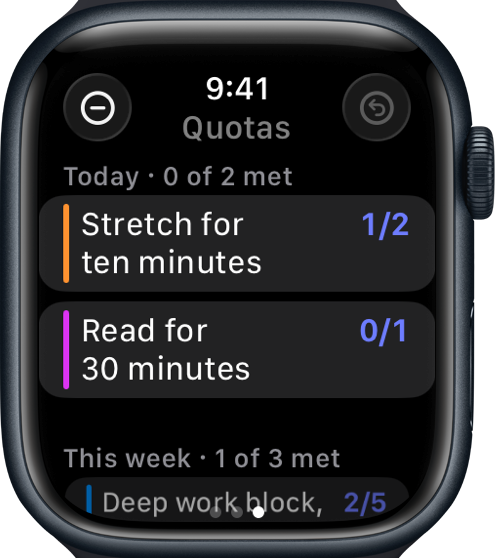
| Page | What you can do |
|---|---|
| Reminders | The current period's reminders with a progress strip (one segment per period, green once a period is finished, even before its start time), then its quota reminders (with their count and period, like "1/2 today"). Tap a reminder to check it off. Tap a quota reminder (or its dashed circle) to mark it considered, or tap the square next to its count to log that you did it. A note glyph after a title means it has notes. Touch and hold a quota reminder's title for Move to, a list of your periods (the current one is marked ✓): tap one to move that quota reminder there for good. Below the period, each task segment with tasks waiting: tap a row to mark it considered, ☐ to complete it, or Defer all. |
| Tasks | Your upcoming tasks. Over-target tasks show their target age and a red flag past a deadline. Tap a task to complete it. Touch and hold for Next period or +1 hour. Snooze all over target (N) opens a sheet to snooze every over-target task. |
| Quotas | Quotas grouped by period (Today, This week, This month, This year), with a header like "This week · 2 of 7 met". Tap a row to log +1. |
On the Quotas page, the ⊖ toolbar button turns on Takeback mode, where each tap logs −1. Show met shows quotas that already reached their target. Each page has an Undo button in the toolbar; on the Reminders page it also reverses a move.
Snoozing from the Watch follows the same rules as the widget: a single task counts from its own target while it is upcoming and stops at a deadline that's still ahead, and the sheet leaves Urgent tasks alone and moves High tasks only when nothing lower is over target.
Smart Stack widget
Add the OpenTask widget to the Smart Stack or a watch face:
- Rectangular: shows the next reminder in the current period in full, with its position (for example "Morning · 2 of 8"). Tap ✓ to check it off, or ⏭ to skip to the next one on the card. Skipping only changes what the card shows. It doesn't change the reminder.
- After the period's reminders, its quota reminders take the card in turn, with the count above a ☐ button. The count is shortened to fit: "0/2" over "today", "wk", "mo", or "yr". On a quota reminder's card, the round button shows a dashed circle instead of ✓: it marks the quota reminder considered, and ☐ logs that you did it.
- Once no period that has started has anything waiting, a task segment with tasks waiting takes the card, one task at a time: the round button marks it considered and ☐ completes it.
- When snoozable tasks are over target, the card switches to "N over target" with two buttons: +1h (an hour from now) and ⏭ with the next period's time. Either snoozes all over-target tasks, and the card then shows what moved.
- Circular and corner: a ring and a count, for glancing.
- The widget moves up the Smart Stack on its own at the start of each period with reminders and while tasks are over target.
Buttons on the card require watchOS 11 or later. On watchOS 10 the card shows but tapping it opens the app.
Notifications on the Watch
Task notifications show their actions on the Watch (Done, +1hr, All +1hr, and the period snooze actions; Done and Delete on an "AI finished" notification). The Watch app handles them itself, without your phone, and confirms with a haptic.
Mac app
The Mac app is a native macOS app, not a Mac Catalyst port or an iPad app. It requires macOS 14 or later.
- One window showing the OpenTask web app. Closing the window keeps the app running, so notifications still arrive.
- Menus: File ▸ New Task… (⌘N) and a Tasks menu with Reload (⌘R), Snooze All +1hr (⌃⌘1), Snooze All +2hr (⌃⌘2), and Snooze All to Tomorrow (⌃⌘3).
- Menu bar item: an OpenTask icon in the menu bar with a badge counting over-target tasks. See below.
- Notifications with the same action buttons as on iPhone: Done, +1hr, All +1hr, the period snooze actions, Done and Delete on an "AI finished" notification, and Complete all on a reminder period notification (which also considers its quota reminders). The long-press snooze grid and the reminder checklist are iPhone-only.
- Dock badge with the over-target count.
- Widgets: the same Reminders, Today's Tasks, and Quotas widgets, in small, medium, and large sizes.
Menu bar item
The OpenTask icon in the menu bar carries a badge with the number of over-target tasks (tasks only, not reminders or quotas). Click it to open a panel:


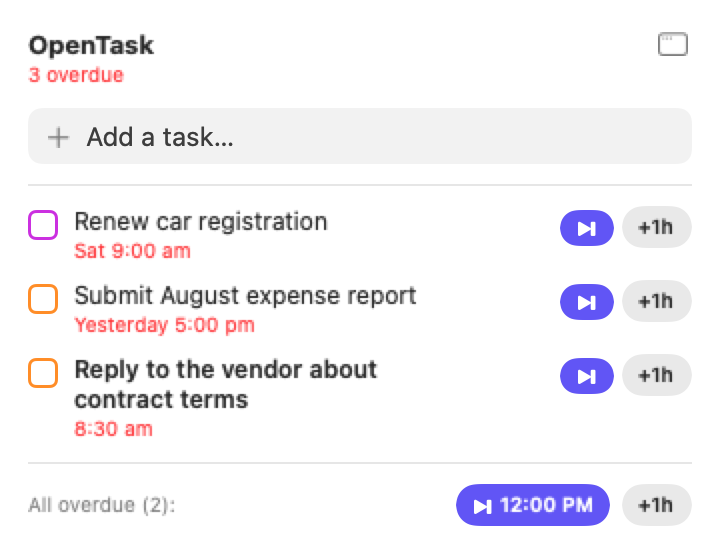
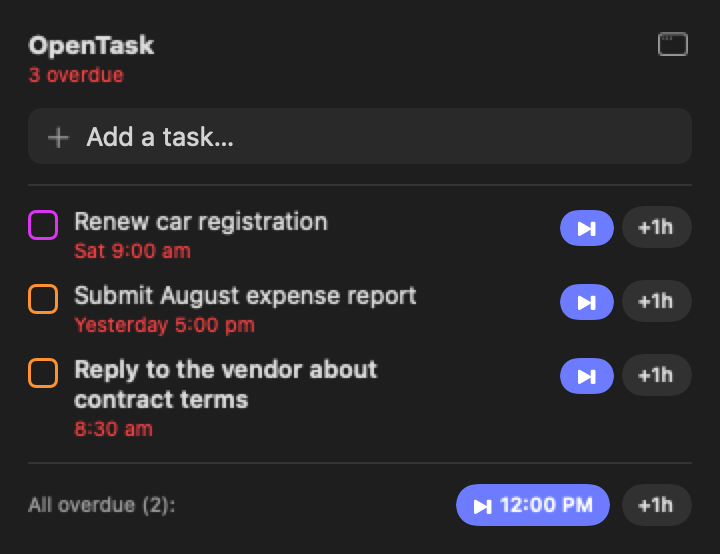
- Add a task…: type a title and press Return. AI fills in the rest, as with the web app's quick add.
- Over-target tasks, up to 8 (with and N more… to open the dashboard filtered to over target), drawn in plum. With nothing over target, the panel lists up to 5 tasks Next up today, or says All clear for today.
- Each task has a square in its project's color to complete it, ⏭ to move it to the next reminder period, and +1h. Like the widget's per-row buttons, these work at any priority, and +1h counts from the task's own target while it is still upcoming. A snooze that would pass a deadline that's still ahead stops at the deadline, and a note says so. Click a title to open the task in the app window.
- All over target (N) at the bottom snoozes all over-target tasks at once, to the next period (⏭ with its time, like ⏭ 4:30 PM) or by an hour (+1h). It follows the bulk snooze rules: High tasks move only when nothing lower is over target, and Urgent tasks never move. A line under it says what moved and what was left.
The panel refreshes when you open it, every couple of minutes, when the Mac wakes, and after each change.
OpenTask ▸ Settings… (⌘,) has two switches: Show OpenTask in the menu bar and Open OpenTask at login. The menu bar item exists only while the app runs, so turn on open at login to keep it there after a restart.
The Mac app uses the same bundle ID as the iPhone app, so macOS lists OpenTask once. See iOS App for building it.