
Quotas
A quota is a target for how often you do something, not when: "Workout 4 times a week", "Call a friend once a month", "Read 2 times a day". You log each time you do it, and the count resets when the period ends.
A quota is a task row with a target count:
| Field | Description |
|---|---|
progress_target | How many times per period. A target greater than 1 makes the task a quota |
is_tracked | Marks a task as a quota even with a target of 1 ("once a month") |
progress_current | How many times you've logged in the current period |
progress_period_start | When the current period began (UTC) |
rrule | The period: FREQ=DAILY, FREQ=WEEKLY, FREQ=MONTHLY, or FREQ=YEARLY. Required on a quota |
quota_prompt_config | Whether and where the quota shows up as a quota reminder. null means the defaults |
quota_day_state | Read-only. What happened to the quota's reminders today (the server keeps it; undo restores it) |
How quotas differ from tasks
- No target. A quota has a period, not a time. It is never over target, never counted in the over-target badge, and never sends over-target notifications. It never appears in task segments either.
- No snooze. The snooze endpoints refuse quotas, and bulk snooze skips them.
- Separate surfaces. In the app, quotas don't appear in task lists, search, or task counts (the API still returns them from
GET /api/tasks; filter with?kind=). They appear on the Quotas page and in the dashboard's Quotas panel (plus the iOS widgets and Apple Watch app). An unmet quota also shows up among your reminders each day as a quota reminder. - Logging isn't completing. Each log adds 1 to
progress_current. The quota stays open when it reaches its target. - A quota cannot also be a reminder.
Periods
The period comes from the quota's rrule and follows your local calendar:
| Period | Editor option | Starts |
|---|---|---|
| Day | Every day | Midnight |
| Week | Every week | Your first day of the week (Sunday by default), midnight |
| Month | Every month | The 1st, midnight |
| Year | Every year | January 1, midnight |
An INTERVAL in the rule is honored (for example, FREQ=WEEKLY;INTERVAL=2 counts over two weeks). A bare period rule like FREQ=MONTHLY is only valid on a quota.
Every quota must have a period. Creating a quota without one, removing a quota's period ("rrule": null), or turning a task with no period rule into a quota is refused with a 400 ("A quota needs a period"). A bulk edit that would leave any selected quota without a period refuses the whole batch and changes nothing.
First day of the week
Settings → Snooze → Week starts on sets where weekly quotas reset: Sunday (the default, so Saturday is the last day of a week) or Monday. It's a per-user setting, also available as week_start (sunday or monday) on GET and PATCH /api/user/preferences. The Quotas panel's days left and its elapsed-time marker, and the Quotas widget's week section, follow it too.
When you change it, each weekly quota's current period ends at the next boundary under the new setting, so it may be a short period (Monday to Sunday is six days). That period is closed like any other: met counts as a completion, short is recorded only. From then on the quota runs on the new boundary. Progress you log after that boundary counts in the new period. For a quota with an INTERVAL greater than 1, the short period is at most one week, and the full interval runs from the boundary after it. The change takes effect right away: any weekly period the new boundary has already ended is closed as soon as you save the setting.
curl -X PATCH https://tasks.example.com/api/user/preferences \
  -H "Authorization: Bearer $TOKEN" \
  -H "Content-Type: application/json" \
  -d '{"week_start": "monday"}'
Met
When progress_current reaches progress_target, the quota is met: it turns green and shows a check. Met is a state, not an exit. You can keep logging, and overflow shows as-is (3/2).
When a period ends
The server checks for ended periods every 5 minutes. At a period boundary, for each quota:
- The finished period is recorded. A period that reached its target also counts as a completion and appears on the History page's Completions tab. A period that fell short is recorded but is not a completion.
progress_currentresets to 0 and a new period starts.
If the server was down across a boundary, it catches up on restart: the first missed period keeps its count, and any further missed periods are recorded as 0. Period rollovers are not undoable.
Because the check runs every few minutes, a quota can briefly still hold the old period's count just after a boundary. Quota reminders already treat it as 0, and logging progress closes the old period first, so a +1 at 00:02 counts for the new day.
A quota created before periods were required may have no rrule. Its count keeps accumulating until you close it, and it stays editable as long as an edit doesn't touch its rule.
Logging progress
In the app:
- Dashboard Quotas panel (also the Quotas page's Summary view). Each quota is a chip whose background fills as the count grows. Tap a chip to log +1; swipe left, right-click, or shift-click to log −1. Press and hold a chip to see its details, with Open for the editor; if the quota has quota reminders, the bubble also has its reminder period chips. For rows with − and +1 buttons, use the Details view.
- Quotas page, Details view. Every open quota as a row with − and +1 buttons. Click a row to select it; double-click to open the editor.
- Widgets and Apple Watch. Tap to log +1. To take a count back, turn on Takeback mode. See Widgets, Watch & Mac.
Through the API:
# Log one
curl -X POST https://tasks.example.com/api/tasks/42/progress \
  -H "Authorization: Bearer $TOKEN"

# Correct a mis-log
curl -X POST https://tasks.example.com/api/tasks/42/progress \
  -H "Authorization: Bearer $TOKEN" \
  -H "Content-Type: application/json" \
  -d '{"delta": -1}'
The body is optional. delta defaults to 1 and can be any integer from -100 to 100. The count never goes below 0. The response is the updated task plus met (whether it's at or past the target) and description (for example, "3/4"). Each log is a separate undo step. Undoing a log after its period has ended does nothing to the count: that period is already closed.
Logging fires the task.progressed webhook, not task.completed. See Webhooks.
Closing a period early
Marking a quota done (POST /api/tasks/{id}/done, or bulk done) closes the current period early and resets the count to 0. Because a "done" on a quota almost always meant "log one", the API refuses it unless you send close_period: true:
curl -X POST https://tasks.example.com/api/tasks/42/done \
  -H "Authorization: Bearer $TOKEN" \
  -H "Content-Type: application/json" \
  -d '{"close_period": true}'
Bulk done skips quotas (reporting them as quota_skipped) unless the same flag is set. No app screen marks a quota done; they only log progress.
POST /api/tasks/{id}/undone refuses a quota. A quota's completions are the records of its met periods, so there is nothing to put back. To correct a count, log a delta of -1.
The Quotas panel and the Quotas page
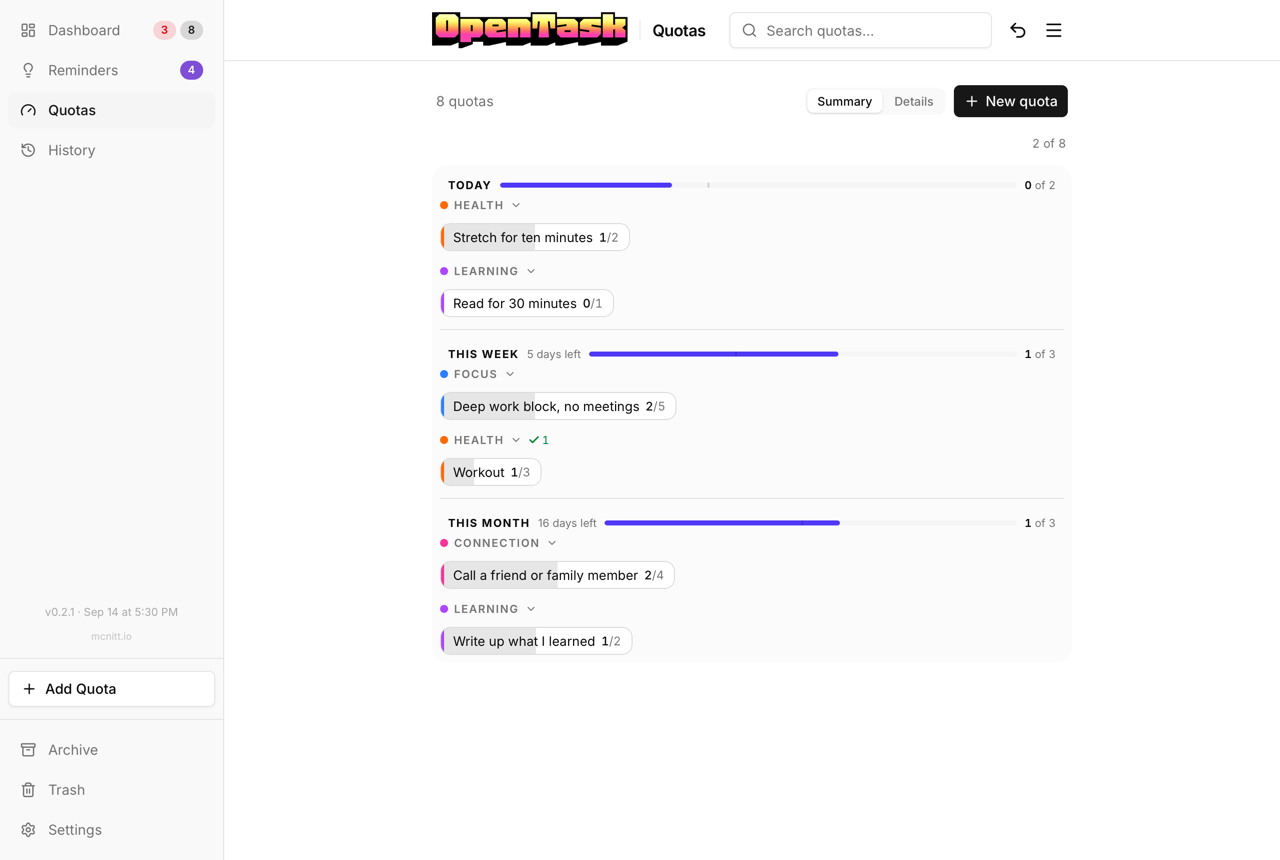
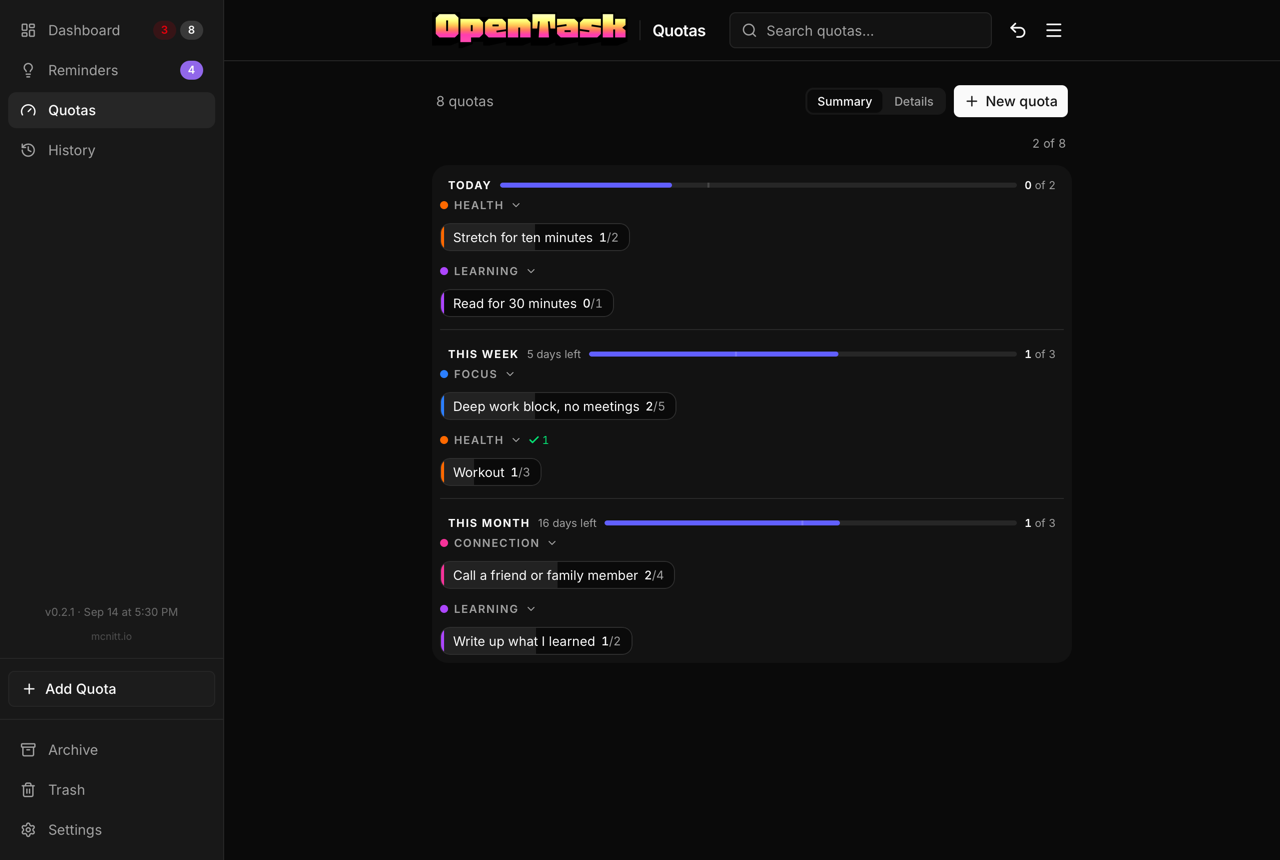
The Quotas page opens on the same panel as the dashboard's Quotas panel (Summary). A Summary / Details switch in the page header swaps it for the full list (Details). The page remembers which one you last picked. A link to a single quota (for example from a widget) opens Details for that visit, so the quota can be scrolled to and highlighted, without changing your choice. New quota works from both views.
The two views group quotas differently:
- Summary (the dashboard Quotas panel): grouped by period (Today, This week, This month, This year), and by label within each period. Each period heading shows days left, a combined progress bar with a marker for how much of the period has passed, and how many quotas are met. Quotas that were already met when the page loaded are put away; the "N of M met" count in the header shows them again. A quota you meet during your session stays in place, green, and fades out over 5 seconds before it's put away. Taking it back below its target (−1) before then keeps it on screen.
- Details: grouped by label, with each row tagged with its period. This is where you select quotas to edit several at once.
Within a group, quotas are sorted by title. Logging never reorders them.
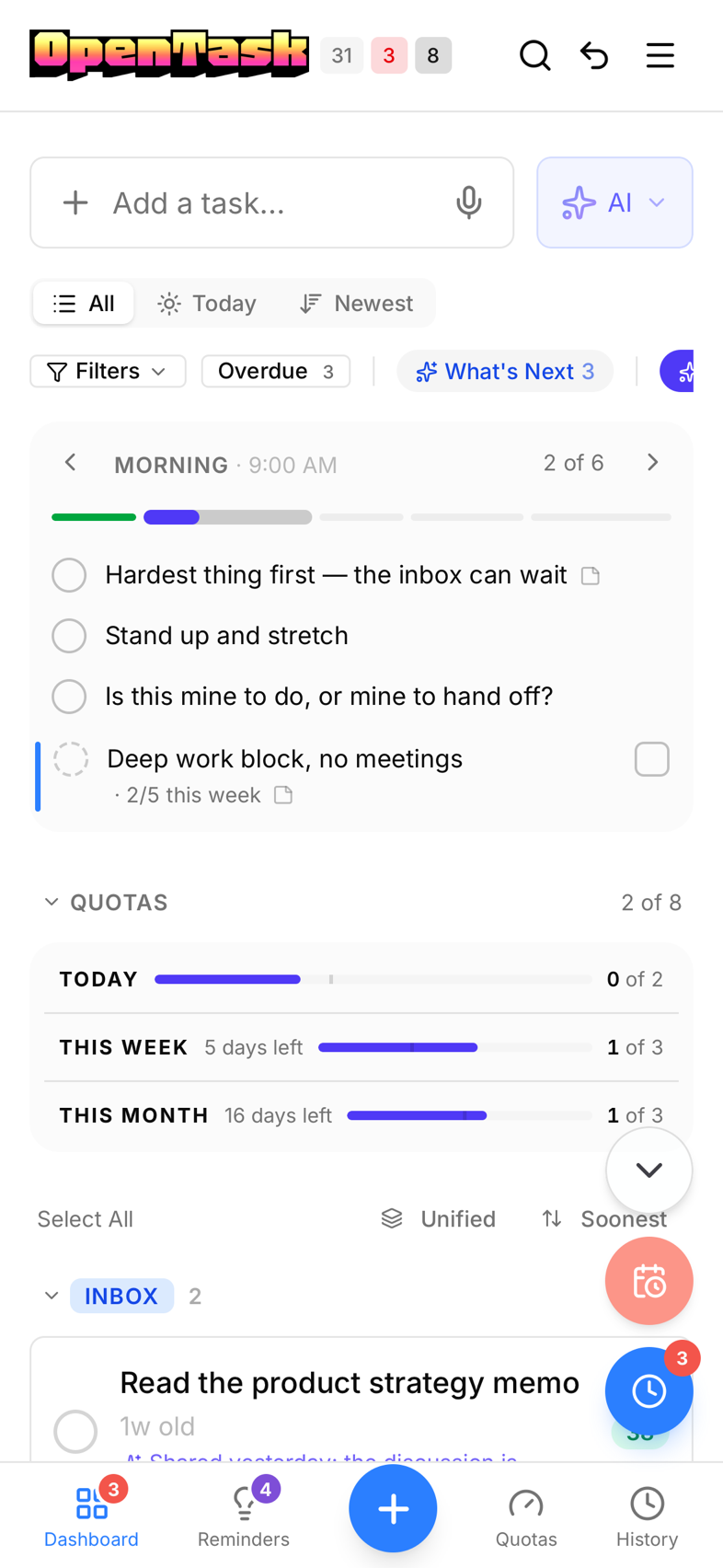
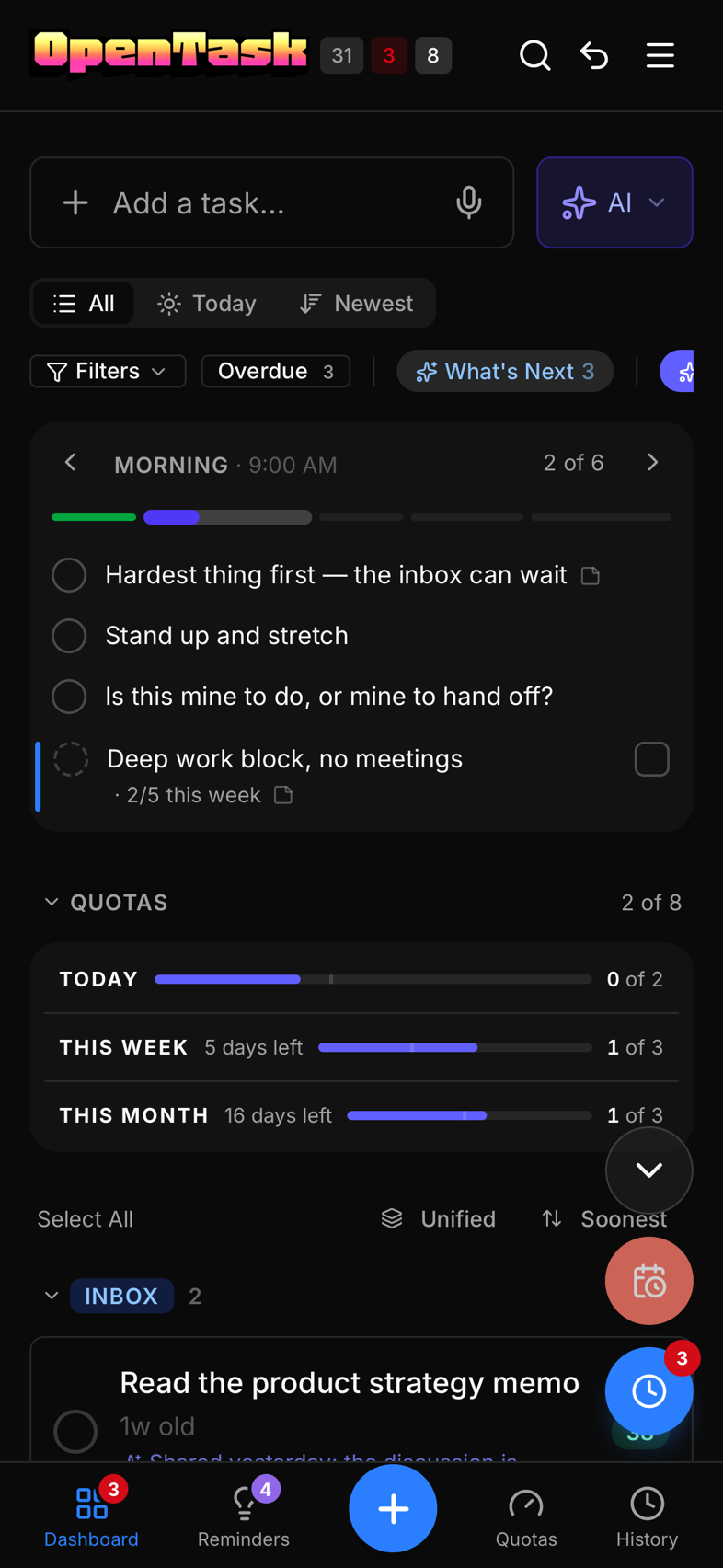
On a phone, the dashboard's Quotas panel folds to one bar per period (Today, This week, This month) until you open it:
Creating and editing quotas
Use New quota on the Quotas page. The quota editor has:
- Title.
- How often: times per period, and Every day / Every week / Every month / Every year.
- Label: one label per quota. Picking a label replaces the previous one. The label decides the quota's group.
- Remind me daily: whether the quota shows up among your reminders, and in which reminder period. See Quota reminders.
- Notes.
Notes appears only when you create or edit a single quota.
To edit several quotas at once, select them in the Quotas page's Details view and open Details in the selection bar. You can also select their quota reminders on the Reminders tab. Only what you change is applied. Remind me daily there shows on, off, or "—" when the selected quotas disagree, and Reminds me in (shown while it's on) sets the reminder period for all of them. For a daily quota counted several times a day, picking a period resets its numbers: the first goes in that period and the rest spread through the day from there.
Through the API, create a quota with POST /api/tasks:
curl -X POST https://tasks.example.com/api/tasks \
  -H "Authorization: Bearer $TOKEN" \
  -H "Content-Type: application/json" \
  -d '{"title": "Workout", "progress_target": 4, "rrule": "FREQ=WEEKLY"}'
For a target of 1, also send "is_tracked": true.
Quota reminders
Every unmet quota also shows up among your reminders each day, in a reminder period, with its progress and period in the label: "Stretch · 1/3 this week", "Floss · 1/2 today", "Back up photos · 0/1 this month". A quota reminder has two actions:
| Action | Where | Effect |
|---|---|---|
| Considered | The dashed circle, or a tap on the row | Handled for today. No progress is logged |
| Did it | The square next to the count | Logs progress and marks it considered |
"Considered all" and Complete all only ever consider. They never log progress.
Which quotas, and how many
- Daily quota with a target of N: N numbered reminders, spread one per reminder period starting at the quota's period. If there are more numbers than periods left in the day, the extras stay in the last period. A period shows at most one row per quota, standing for the highest number placed there. That row is done once today's count reaches its number. Did it raises today's count to that number (it never adds past it).
- Every other quota (weekly, monthly, yearly, or daily with an interval such as every 2 days): one reminder a day. It's done for today once any progress is logged today, from anywhere. Did it logs +1, only once per day for that reminder, even if progress was already logged today from somewhere else. Once the quota is met, it stops appearing until its period resets.
By default, daily, weekly, and monthly quotas have quota reminders; yearly quotas don't. Quota reminders are only for your own quotas, never for quotas other people own in a shared project.
Choosing where they go
- Press and hold a quota reminder (on the Reminders tab or the dashboard's Reminders panel) or a chip in the dashboard's Quotas panel. The bubble lists your reminder periods as chips, with the current one highlighted. Tap one to move the quota reminder there for good. It's the same change as picking the period in the quota editor, and Undo reverses it.
- For a daily quota, a quota reminder row moves only the numbers it stands for. A Quotas panel chip shows one row of chips per number ("1st of 2", "2nd of 2"); above a target of 4, it shows one row per period the numbers are in now.
- The chips don't appear when the quota's Remind me daily is off, or quota reminders are off in Settings.
- On Apple Watch, touch and hold a quota reminder's title for a Move to list of periods. See Widgets, Watch & Mac.
- In the quota editor, Remind me daily turns quota reminders on or off for that quota. For a weekly or monthly quota, pick its reminder period from the chips. For a daily quota, each number gets its own picker ("1st", "2nd", ...). The pickers show where each reminder is right now. A quota you haven't changed follows the defaults.
- In Settings → Reminder periods, the Quota reminders switch turns them off for you entirely, and Default period sets the reminder period for quotas you haven't placed (it's also where new reminders go when nothing says when). With no default, they go in the first period of the day.
If you remove a reminder period, quota reminders placed in it move to the remaining period nearest to it, the same way its reminders move (see Editing periods). If it was your default period for quota reminders, the default moves too. One Undo puts everything back.
A server administrator can turn quota reminders off for everyone with OPENTASK_QUOTA_PROMPTS=off. See Configuration.
How they count
Quota reminders count like reminders: toward each period's progress, the Reminders tab badge, and the reminder period notifications. They never count toward the over-target count or the app icon badge, and they can't be snoozed.
Putting one back
A handled quota reminder is listed under Show N considered on the Reminders tab, in the dashboard Reminders panel's considered list, and in the Reminders widget's completed list, with a filled dashed circle. Tap it to put the quota reminder back: it waits for today again.
- Putting back a considered quota reminder logs nothing.
- Putting back a did it takes off exactly the progress that "did it" logged. For a daily quota, a "did it" on a row the count had already reached logged nothing, so nothing comes off.
- A quota reminder that is done because of progress logged elsewhere stays done after a put-back. For example, a weekly quota's reminder stays done while a +1 from today is still logged.
Logging −1 after a "did it" also brings the quota reminder back when the lower count no longer covers it: a daily row waits again once the count drops below its number, and any other quota's reminder waits again once nothing is logged today. A quota reminder that was only considered stays considered.
Undo works too: undoing a "did it" restores the count and brings the reminder back. The Apple Watch and the notification checklist can't put a quota reminder back.
Quota reminders API
Quota reminders aren't stored as tasks. The server works them out when you ask, and GET /api/reminders returns them in each group's prompts array. Each one has a prompt_key (q:<task id>:<number>:<date>), task_id, number (for daily quotas, otherwise null), numbers (for daily quotas, every number the row stands for, ascending; otherwise null), slot_id (the period it's in; null in Anytime), title, current, target, period, stripe_color, has_notes (whether the quota has notes), considered, and done. A quota reminder is waiting while it's neither considered nor done.
Act on quota reminders by key:
# Considered
curl -X POST https://tasks.example.com/api/quota-prompts/consider \
  -H "Authorization: Bearer $TOKEN" \
  -H "Content-Type: application/json" \
  -d '{"keys": ["q:42:0:2026-09-24"]}'

# Did it
curl -X POST https://tasks.example.com/api/quota-prompts/did \
  -H "Authorization: Bearer $TOKEN" \
  -H "Content-Type: application/json" \
  -d '{"keys": ["q:42:0:2026-09-24"]}'
Both return { considered, did, tasks }: how many were considered, how many logged progress, and the affected quotas. Each call is one undo step. The whole batch is refused (400) if any key is malformed, isn't one of your open quotas, or is for a day other than today in your timezone. "Did it" fires the task.progressed webhook, like a +1.
To put quota reminders back, send their keys to POST /api/quota-prompts/restore:
curl -X POST https://tasks.example.com/api/quota-prompts/restore \
  -H "Authorization: Bearer $TOKEN" \
  -H "Content-Type: application/json" \
  -d '{"keys": ["q:42:0:2026-09-24"]}'
It returns { restored, tasks }: how many quota reminders now wait again, and the affected quotas. It follows the same rules as /consider and /did: one undo step, and the whole batch is refused (400) for a malformed key, someone else's quota, or another day. A key that is already waiting changes nothing. When a count goes down, it fires task.progressed. Quotas are never put back with POST /api/tasks/{id}/undone.
A quota's quota_day_state records what each "did it" added in did_applied, which is what a put-back takes off.
POST /api/tasks/bulk/complete also takes a prompts array, so reminders and quota reminders can be handled in one request and one undo step. A bare key means considered; {"key": "...", "did": true} means did it. ids can be empty when prompts isn't.
To set a quota's reminders through the API, send quota_prompt_config on create or PATCH:
| Field | Description |
|---|---|
enabled | Turn this quota's reminders on or off |
slot_id | The time slot (reminder period) it goes in. null uses your default |
numbers | Daily quotas only: the time slot for each number, like {"1": 3, "2": 5} |
Send "quota_prompt_config": null to go back to the defaults. A PATCH replaces the whole config, so to move a quota reminder, send the stored config with your change merged in: slot_id for most quotas, or the row's numbers (each set to the new slot) for a daily quota. A slot id you send must be one of your own periods (400 otherwise).
POST /api/tasks/bulk/edit works differently: it merges quota_prompt_config over each quota's stored config. enabled and slot_id replace that field, numbers replaces the per-number map as a whole ({} clears it), and fields you don't send are kept. null still resets every selected quota to the defaults.
# Put three quotas' reminders in time slot 2, keeping everything else
curl -X POST https://tasks.example.com/api/tasks/bulk/edit \
  -H "Authorization: Bearer $TOKEN" \
  -H "Content-Type: application/json" \
  -d '{"ids": [42, 43, 44], "changes": {"quota_prompt_config": {"slot_id": 2, "numbers": {}}}}'
The user preferences quota_prompts_enabled and quota_prompt_slot_id (PATCH /api/user/preferences) are the Settings switch and default period. default_reminder_slot_id is another name for quota_prompt_slot_id.
Listing quotas
GET /api/quotas returns every open quota:
| Field | Description |
|---|---|
quotas | Open quotas, in the standard task format |
total | Number of open quotas |
has_any | Whether you have any quotas, including closed ones |
curl https://tasks.example.com/api/quotas \
  -H "Authorization: Bearer $TOKEN"