
Reminders
A reminder is a thought to have at the right moment rather than something to get done: "Drink a glass of water", "Stretch before sitting down", "Check in with how the week is going". Reminders live on their own Reminders tab, grouped by the part of the day they belong to.
A reminder is a task row with is_reminder: true. It uses the same title, notes, priority, and recurrence fields as a task, but behaves differently.
How reminders differ from tasks
| Task | Reminder | |
|---|---|---|
| Missed | Stays over target until done | Rolls forward to its next occurrence |
| Over-target count and app icon badge | Counted | Never counted |
| Notifications | Individually, repeating while over target | Once per reminder period, as a group (iOS app) |
| Snooze | Yes | No — the snooze endpoint refuses reminders and bulk snooze skips them |
| Completing it | Done | "Considered" |
| Priority | What missing it costs: notification cadence and bulk snooze | Position within its period |
- No debt. A recurring reminder that you miss is not carried over. It appears again at its next scheduled occurrence. There is no "over target by 3 days" state.
- Considered, not done. Checking off a reminder marks it considered for today. A recurring reminder advances to its next occurrence; a one-time reminder is completed.
- Can't be snoozed. Reminders stay in their period. You can still change a reminder's time in its editor (an explicit reschedule), which moves it to a different period.
- Priority is prominence. Within a period, higher-priority reminders sort first. Priority never makes a reminder interrupt you.
- A reminder cannot also be a quota.
The Reminders tab
The Reminders tab shows today's reminders, grouped by reminder period:
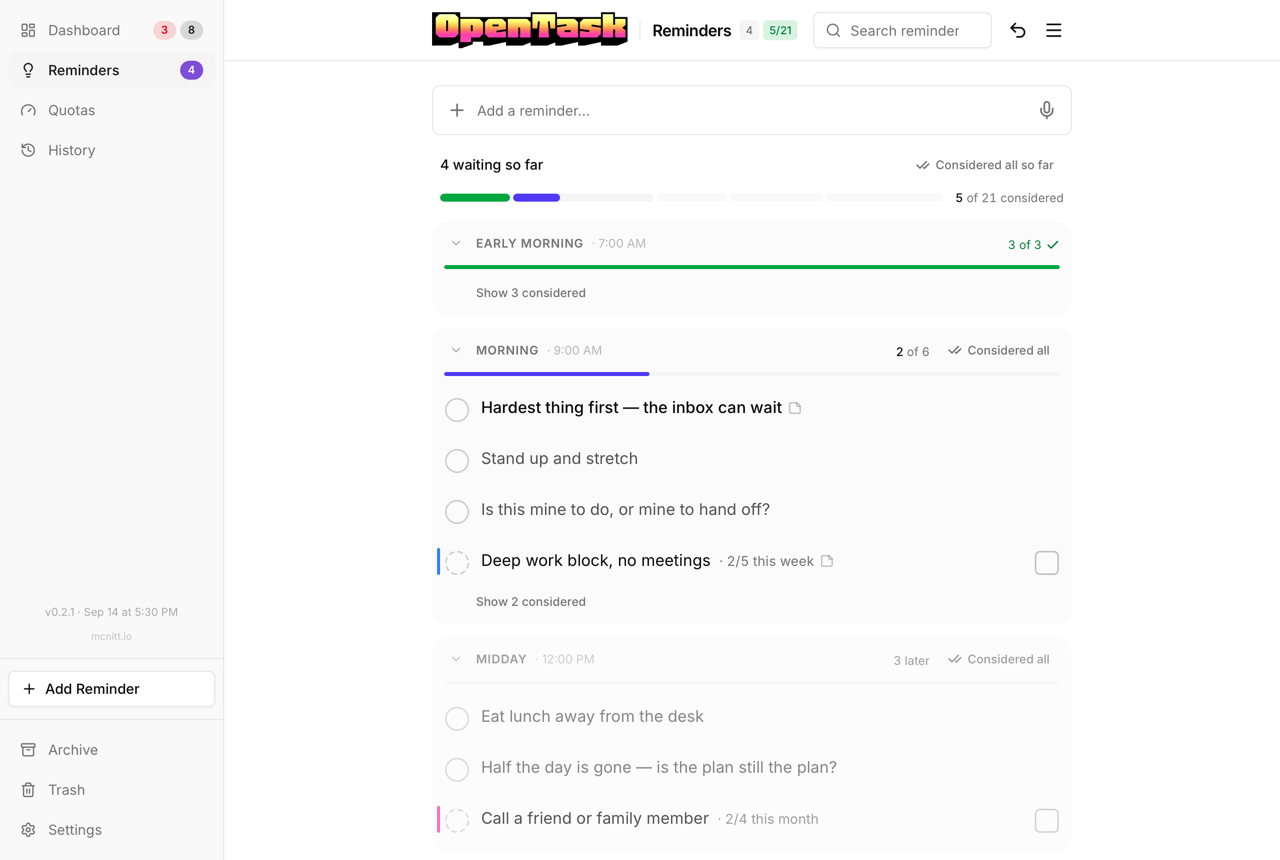
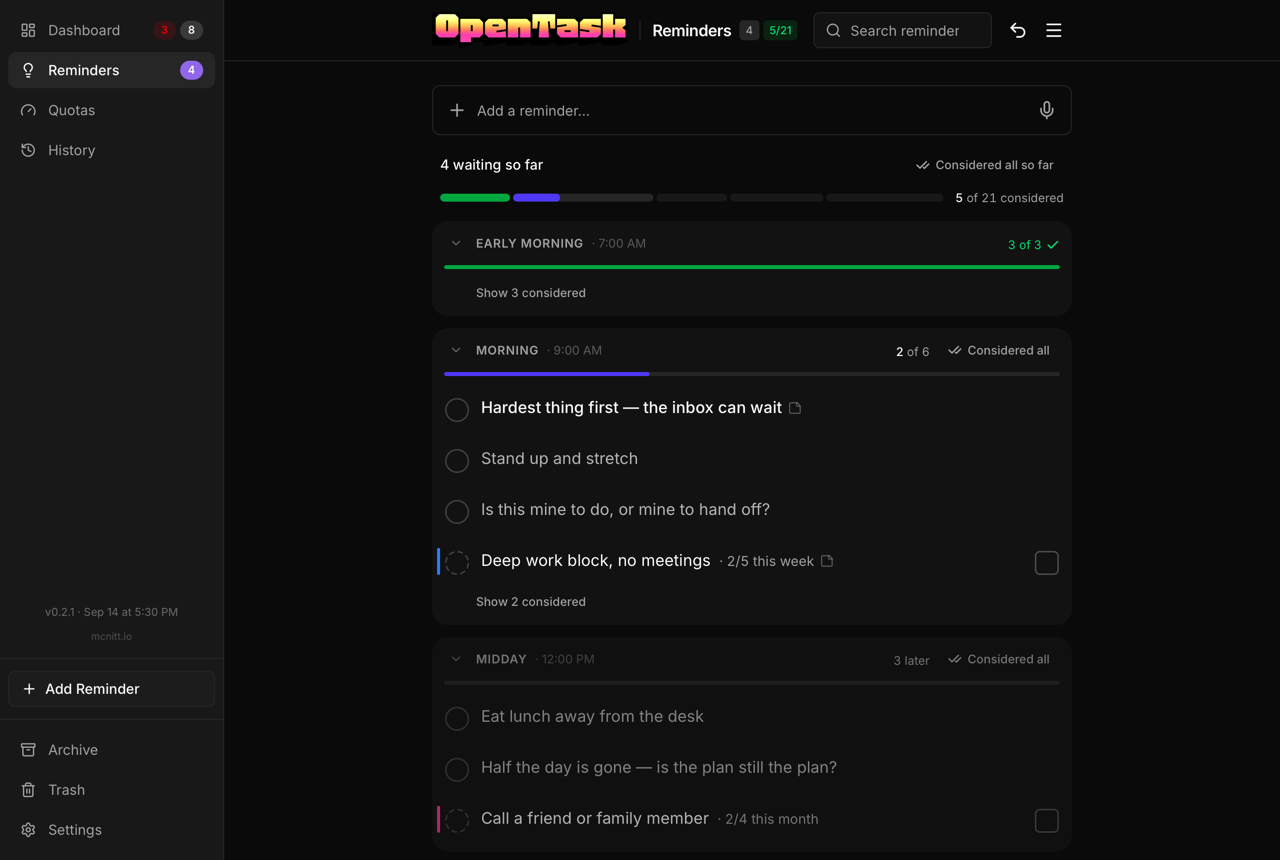
- The day bar at the top has one segment per period, showing how much of it you've considered. Tap a segment to go to that period: a folded period opens and the page scrolls to it.
- Each period is a section with a progress bar of how many you've considered today. The current period opens by default; the others fold to a header with a count. Periods that have already started show all their reminders; periods later in the day show the first few with Show all.
- Tap a reminder to consider it. Considered reminders leave the list right away. Show N considered under a period lists them; tap one's circle to put it back.
- Considered all on a period marks everything in it as considered. Considered all so far at the top covers every period that has already started, plus Anytime.
- Press and hold a reminder to select it. The selection bar offers bulk actions and Details, which opens the editor.
- A small note glyph after a reminder's title means it has notes.
- Anytime holds reminders with no time of day, or with a time before your first period starts.
- Not today is a folded list of reminders that have no occurrence today (for example, a weekly reminder on its off day), so every reminder stays reachable.
The tab's badge counts reminders still waiting in periods that have started, plus Anytime. Reminders in later periods aren't counted until their period begins.
Quota reminders
Unmet quotas also appear here, as quota reminders listed under each period's reminders, with the quota's progress and its period in the label ("Stretch · 1/3 this week", "Floss · 1/2 today") and a thin stripe in its label color. A quota reminder has two actions:
- The dashed circle (or a tap on the row): considered. Handled for today, no progress logged.
- The square next to the count: did it. Logs progress on the quota and marks it considered.
Considered all and Considered all so far consider quota reminders too, but never log progress. Quota reminders count like reminders in each period's progress bar and in the tab's badge. Search matches them by title.
Press and hold a quota reminder to see the quota's details, with Open for the quota editor. The same bubble lists your reminder periods as chips: tap one to move the quota reminder there for good (with Undo). A note glyph after the count means the quota has notes; the bubble shows them.
A handled quota reminder leaves the list. It's listed under Show N considered, after the period's reminders, with a filled dashed circle: tap it to put the quota reminder back. Putting back a "did it" also takes off the progress it logged. See Putting one back. See Quota reminders for which quotas appear, how many times a day, and how to choose their period.
Selecting quota reminders. Quota reminders can be selected together with reminders. Pressing and holding a quota reminder opens its bubble, so on a phone, start the selection from a reminder, then tap quota reminders to add them. On a desktop, Cmd/Ctrl-click toggles a quota reminder and Shift-click selects a range across both. With quota reminders in the selection, the selection bar changes:
- Considered marks everything selected as considered, in one step and one Undo. It never logs progress on a quota.
- Details opens the quota editor when only quota reminders are selected (several quotas open together in the multi-quota editor). With a mix of reminders and quota reminders, Details is unavailable.
- Trash is hidden, so a quota reminder can never delete its quota. Delete a quota from its editor.
The dashboard also has a compact Reminders panel alongside the Quotas panel. Tap to consider a reminder there; press and hold to preview it and open the editor. Reminders with notes show the note glyph. Waiting quota reminders appear there too, after each period's reminders, with the same count, note glyph, and press-and-hold bubble (including the period chips) as on the Reminders tab. Handled quota reminders are listed in the panel's considered list, where a tap puts them back. Each period shows up to 20 rows on a wide screen, where the panel has its own column, and 5 on narrower screens, with Show more for the rest. The panel has no selection mode.
Task segments
Below the periods, the Reminders tab lists task segments. A task with no target — a squeaky door isn't worth today, but without seeing it now and then you'd miss the day it would fit — comes round at a pace set by its horizon. A task with a target you picked is quiet until its date, apart from a heads-up or two in Upcoming shortly before.
Which tasks. The horizon segments hold your own open one-off tasks with no target you picked. A task with a deadline and its automatic target stays here, on its horizon's rhythm (pulled in as the deadline nears), until that target arrives. Upcoming holds tasks with a picked target that hasn't arrived — one-offs and the next occurrence of a repeating task — on their heads-up days only. An automatic target never appears in Upcoming. Reminders, quotas, and tasks in someone else's shared project are left out. A task whose target arrives moves to the dashboard as over target, so it's never in two places.
One segment per horizon, each shown on its own day, plus Upcoming:
| Segment | Shown |
|---|---|
| Tasks · Days | Every day |
| Tasks · Upcoming | A task's heads-up days (below) |
| Tasks · Weeks (and Unset) | Every check-in day (Saturday by default) |
| Tasks · Months | The first check-in day of the month |
| Tasks · Eventually | The first check-in day of January, April, July, and October |
A segment shows only on a day it has tasks. A task appears once its segment's day has come round since you last considered it (or since you added it), and it keeps appearing every day after that until you consider it. A task added on its segment's day shows that day, so a new Days task shows today; a Weeks task added on a Tuesday waits for the check-in day. A close deadline can pull a task into a sooner segment.
Check-in day. Settings → Check-in day (Saturday by default; check_in_day in /api/user/preferences, 1 = Monday … 7 = Sunday) sets the day Weeks comes round, and so the first-of-month and first-of-quarter days for Months and Eventually. It's separate from Week starts on, which only resets weekly quotas, and it doesn't affect Upcoming.
Upcoming heads-ups. The wait is the number of days from when the target was set (or the task was made, or a repeating task last done) to the target's day, counted in your local days. A task gets:
- a heads-up the day before its target, if the wait is 2 days or more (a task made today for tomorrow gets none);
- if the wait is more than a week, one more: 3 days before (a wait under 16 days) or 4 days before (16 days or more).
An untouched heads-up shows again each day until you consider it or the target arrives, as one row. On the target's day the task leaves Upcoming and is over target. Moving a target re-measures the wait from the move. Each row shows the target, any deadline and the gap ("Target Tue Nov 3 · deadline Sat Nov 7 (+4d)"). Every row has Today and its hold-for-a-time picker, which offers Deadline day when the task has a deadline. On a repeating task, Today moves only this occurrence's target, so completing it still brings the next one round on schedule. A one-off's target chip offers Remove target (no deadline), which sends it back to its horizon segment, or Back to auto (with a deadline), which puts the deadline's automatic target back and takes the row out of Upcoming. A repeating row's chip says "repeats" and offers nothing. Upcoming rows never count as over target and never notify.
Each row:
- The circle on the left (or a tap elsewhere on the row) marks the task considered: you've seen it. It's never a completion. The row leaves the list, and the segment's bar fills; it turns green when nothing is left to consider.
- The checkbox on the right completes the task.
- Today (just left of the checkbox) gives the task a target today, at the time the snooze-all button would use (the next period) or the next hour, and moves it to the dashboard. Like any move, it stops at a deadline that's still ahead. On the web, hold it (or right-click it) to pick a different day or time instead.
- The horizon chip changes the task's horizon in one tap. It shows a word only when the task's own horizon differs from the segment's; a faint dot means Unset. A second line appears only when there's a future target ("Nov 1") or a deadline to show.
The header counts "X of Y" like a period (considered or deferred today, out of today's rows) and says how often the segment comes round; tap the count to see what was considered and put any back. Defer all takes the rest off today's list; they come back tomorrow, still not considered. Tasks are listed by priority, never moved around by acting on another row. A segment with more than 50 tasks waiting suggests Process.
Task segments are only for awareness: they never count in the tab's badge, a period's progress, Considered all so far, the over-target count, or any notification. Each action is one Undo step. On the dashboard, the segments have their own Tasks card under the Reminders panel: it pages through today's segments with its own strip of bars, opens on the first with anything waiting, and collapses to one line ("Tasks · 75 of 75 ✓") once every segment is handled. The Reminders widget and the Apple Watch show task segments after the periods.
Creating and editing reminders
Use Add a reminder… at the top of the Reminders tab. The reminder editor sets:
- How often: Every day, Weekly (pick days), Monthly (pick a day of the month), or Once.
- When in the day: one chip per reminder period. Picking a chip sets the reminder's time to that period's start time. A new reminder starts on your default period.
A one-time reminder stays on the Reminders tab until you consider it.
The quick add at the top of the Reminders tab takes just the words. With AI enabled, it works out the schedule from the text; a reminder with no time of day in its text goes in your default period.
Default period
Settings → Reminder periods → Default period is where a reminder goes when nothing says when: a reminder added with just its words (the Reminders quick add, or an API call such as an Apple Shortcut that sends only a title), or one whose text has no time of day in it. It lands there, daily at the period's start, as soon as it's created. If AI enrichment then finds a time in the text ("every Friday evening"), it moves the reminder to that period; if enrichment is off or fails, it stays in the default period. With no default set, or if the default period was removed, reminders go in the first period of the day.
The same setting is where quota reminders go for quotas you haven't placed.
Through the API, create a reminder with is_reminder: true:
curl -X POST https://tasks.example.com/api/tasks \
  -H "Authorization: Bearer $TOKEN" \
  -H "Content-Type: application/json" \
  -d '{"title": "Stretch before sitting down", "is_reminder": true, "rrule": "FREQ=DAILY;BYHOUR=9;BYMINUTE=0"}'
The rrule decides the schedule:
- Omitted (and no
due_at): the reminder goes in your default period, daily at its start (FREQ=DAILY;BYHOUR=h;BYMINUTE=m). With AI enabled, a title-only request is still enriched, which can move it. "rrule": null: no schedule. The reminder is one-time and goes in Anytime. The editor's Once option sends this.- A rule: used as sent.
The default period is also available through the API as default_reminder_slot_id on GET and PATCH /api/user/preferences. It's the same setting as quota_prompt_slot_id; either name works, and sending both with different values returns a 400.
To put back a reminder you considered by mistake, call POST /api/tasks/{id}/undone, or use Undo.
To consider several reminders in one request (and one undo step), use POST /api/tasks/bulk/complete with {"ids": [...]}. The same request can also handle quota reminders through its prompts array.
Reminder periods
Reminder periods (called time slots in the API) are the named parts of your day, such as "Morning" or "Evening". Each period has a label and a start time, and each user has their own set.
Default periods
Every user starts with these five:
| Label | Starts |
|---|---|
| Early morning | 7:00 AM |
| Morning | 9:00 AM |
| Midday | 12:00 PM |
| Afternoon | 4:00 PM |
| Evening | 8:30 PM |
How items are assigned to a period
A period runs from its start time until the next period starts. An item belongs to the period with the latest start time that is at or before the item's time of day:
- For a recurring item, its time of day comes from its schedule (the anchor time).
- Otherwise, it comes from its target (
due_at), in your timezone.
Nothing stores a period ID on a task. Membership is worked out from the times whenever it's needed, so changing a period's start time regroups items immediately. Items with no time of day, or a time before your first period, go in Anytime.
Editing periods
Go to Settings → Reminder periods. You can:
- Rename a period (edit its name).
- Change its start time. Edits save when you press Enter or leave the field; Escape reverts.
- Add a period with the row at the bottom (name + start time).
- Remove a period with its X. The last remaining period can't be removed.
Two periods can't share a start time. Periods are always listed in start-time order; there is no separate ordering to edit.
What happens to reminders:
- Moving a start time moves the period's reminders with it. Reminders set exactly on the old start move to the new start. A reminder set inside the period (for example, "Afternoon, 5:15 PM") keeps its time if it's still inside the period; otherwise it moves to the new start. Reminders in other periods are not changed.
- Removing a period moves each of its reminders to the start of the nearest remaining period (ties go to the earlier one). Quota reminders placed in that period, and the default period for quota reminders if it was this one, move to the remaining period nearest the removed period's start.
- A repeating reminder keeps its days (a Tue/Thu reminder stays Tue/Thu); only its time changes.
- Renaming or adding a period doesn't move any reminders.
- Ordinary tasks are never changed. They just regroup by their own target.
Moving or removing a period is a single undo step: the toast's Undo restores the period, every reminder it moved, and where its quota reminders were placed.
Where else periods are used
- Dashboard "Today" view. The dashboard's Today view groups today's tasks by period, using the same rule.
- Snooze to a period. The top bar's snooze-all button can send over-target tasks to the next period's start (Settings → Snooze → Snooze-all button: Next period, the default). In the iOS app, over-target notifications offer All → Next period and All → period name actions. See Snooze.
- AI parsing. When AI enrichment creates a reminder with a stated time, it snaps the time to the nearest period start. With no time stated, the reminder stays in your default period.
- Quota reminders. Unmet quotas show up in a period each day. See Quota reminders.
- Notifications. With the iOS app, each period sends one notification when it starts, if it has reminders or quota reminders waiting. See Notifications.
Time slot API
| Method | Endpoint | Purpose |
|---|---|---|
GET | /api/time-slots | List your periods, earliest first. Returns { time_slots, count } |
POST | /api/time-slots | Add a period. Body: { "label": "Lunch", "start_time": "12:30" } |
PATCH | /api/time-slots/{id} | Rename and/or move. Body: label and/or start_time |
DELETE | /api/time-slots/{id} | Remove a period |
GET | /api/reminders | Today's reminders and quota reminders, grouped by period, plus task segments |
start_time is 24-hour HH:MM and must be unique among your periods. PATCH and DELETE return { slot, reminders_moved, quotas_moved, undo_id }. reminders_moved counts reminders only. quotas_moved counts quotas whose quota reminders were placed in a removed period (always 0 for PATCH: a period keeps its id when it moves, so its quota reminders go with it). undo_id is null for a rename, which moves nothing.
GET /api/reminders returns:
| Field | Description |
|---|---|
groups | One entry per period (plus a final group with slot: null for Anytime): slot, reminders (waiting), count, considered, considered_items, and the quota reminders: prompts, prompts_waiting, prompts_considered |
not_today | Reminders with no occurrence today |
total | Reminders still waiting today |
considered_total | Reminders considered today |
prompts_total | Quota reminders still waiting today |
prompts_considered_total | Quota reminders handled today |
has_any | Whether you have any reminders at all |
task_segments | Today's task segments, each { horizon, tasks, waiting, considered, deferred, nudge }. Each task is a full task with a segment_state of waiting, considered, or deferred. It's a top-level field, never inside groups, so a Complete all on a period can't reach a task |
reminders, count, considered, total, and considered_total count reminders only. Quota reminders are reported separately in the prompts fields. Each group's prompts lists every quota reminder placed in that period today, handled ones included. Each prompt carries its slot_id (the period it's in), numbers (for a daily quota, every number that row stands for), and has_notes. See Quota reminders API for their fields and for POST /api/quota-prompts/consider, /did, and /restore. A handled quota reminder is never in considered_items; put it back with /restore, not /api/tasks/{id}/undone.
curl https://tasks.example.com/api/reminders \
  -H "Authorization: Bearer $TOKEN"
Three endpoints act on task segments. Each takes { "ids": [...] } (your own open tasks only; anything else is a 400) and is one undo step:
| Endpoint | Does |
|---|---|
POST /api/task-segments/consider | The circle: marks the tasks considered (last_considered_at). Never a completion |
POST /api/task-segments/defer | Defer all: off today's list, back tomorrow. Not a consider |
POST /api/task-segments/target-today | Today: moves the target to today (the next period, or the top of the next hour), or to an optional at, stopping at a deadline still ahead, and marks them considered. On a recurring task only the target moves, not the scheduled occurrence. Returns until and affected |
Complete a segment task with the usual POST /api/tasks/{id}/done.